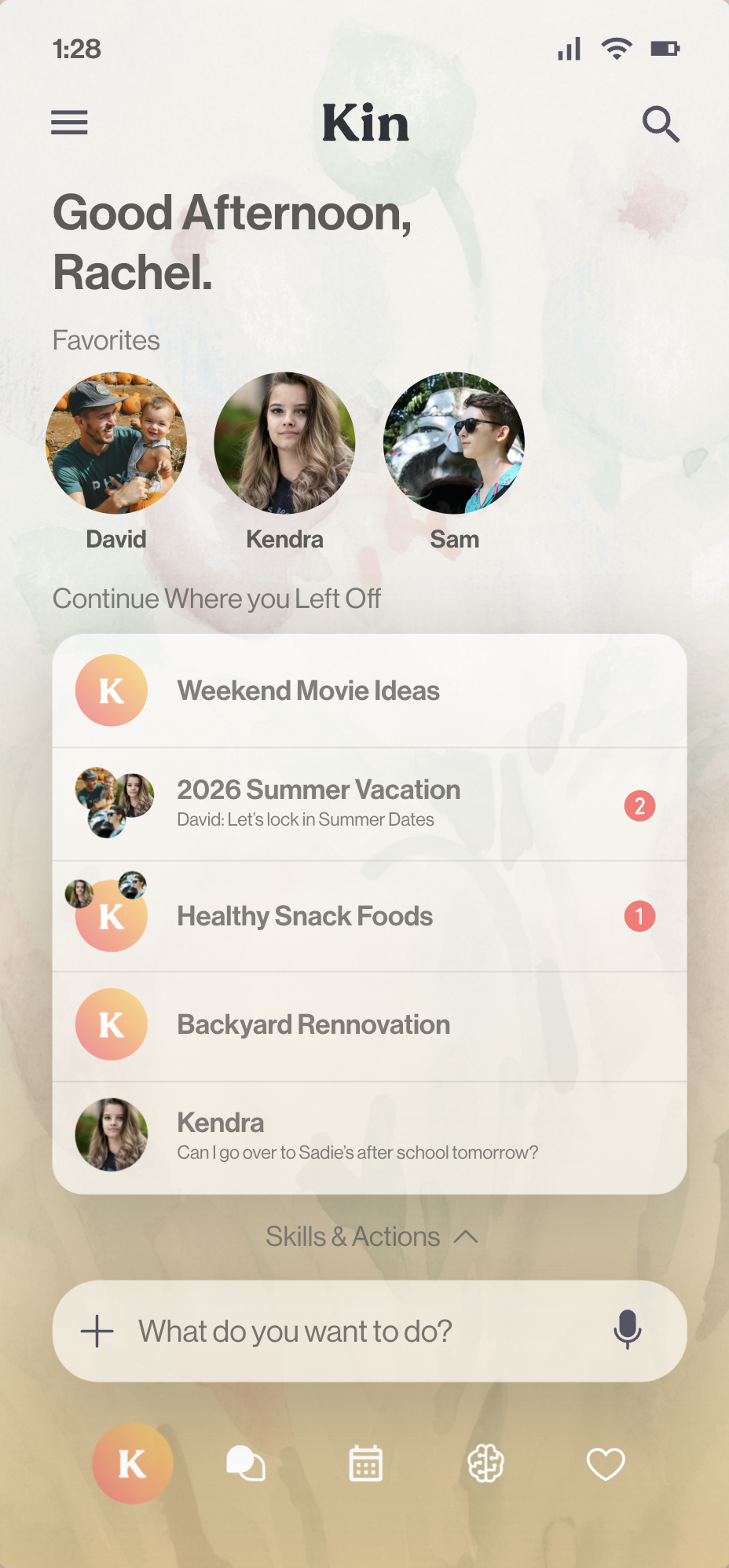
Bring Kin home, step by step.

Welcome home. Let’s get your family on Kin.
About 20 minutes to set yourself up, then a couple of minutes for each person.
A Mac
Apple silicon (M1 or newer), macOS 14 Sonoma or later, and 16 GB of memory or more. Leave about 10 GB free. One that stays on and plugged in works best.
Your iPhone
For the Kin app. You’ll install it in step 1.
Your license key
It’s free, and it’s in the email we sent when you downloaded Kin, with a backup download link.
Your family
Names for each person, and ages for kids. One license covers the whole household.
Good to know: do your phone first, then your Mac.
Install the Kin app on your iPhone
Start with your phone so it’s ready when your Mac is.
- Point your iPhone’s Camera at the code and tap the link. Or open the link below on your iPhone.On your iPhone, tap Open in TestFlight below.
- If asked, install TestFlight. It’s free, and it’s how Apple delivers apps in beta.
- Tap Install, then open Kin once. It will wait for your Mac. That’s expected.
Scan with your iPhone’s Camera
Install Kin Server on your Mac
Kin Server is the part that runs at home and keeps everything on your Mac.
- Open Kin-Server.dmg. If it isn’t in your Downloads folder, use the download link in your email.
- Drag Kin Server into Applications.
- Open Kin Server. The first launch can take a minute. If macOS asks whether you’re sure you want to open an app downloaded from the internet, click Open.
Finish setting up Kin Server
Kin Server walks you through these, in this order.
- Choose Set up a new Kin.
- Agree to the Terms and Privacy Policy. The box for counting basic usage starts on. Turn it off now or later. Kin works the same either way.
- Enter your license key from your email.
- Create your account and password. It also encrypts your data, so we can never see it or reset it.
- Save your recovery key (see below).
- Download the model. It’s a few gigabytes, one time only.
- At Connect your phone, leave the QR code and pairing code on screen for the next step.
Connect your iPhone
- Open your iPhone’s Camera, point it at the QR code on your Mac, and tap the Kin link. Works on any network, even cellular.
- Or open Kin on the same Wi‑Fi as your Mac, enter the 6‑digit pairing code, and tap Connect. Tap Allow if it asks about your local network.
- Sign in with the password you just created. You’re in.
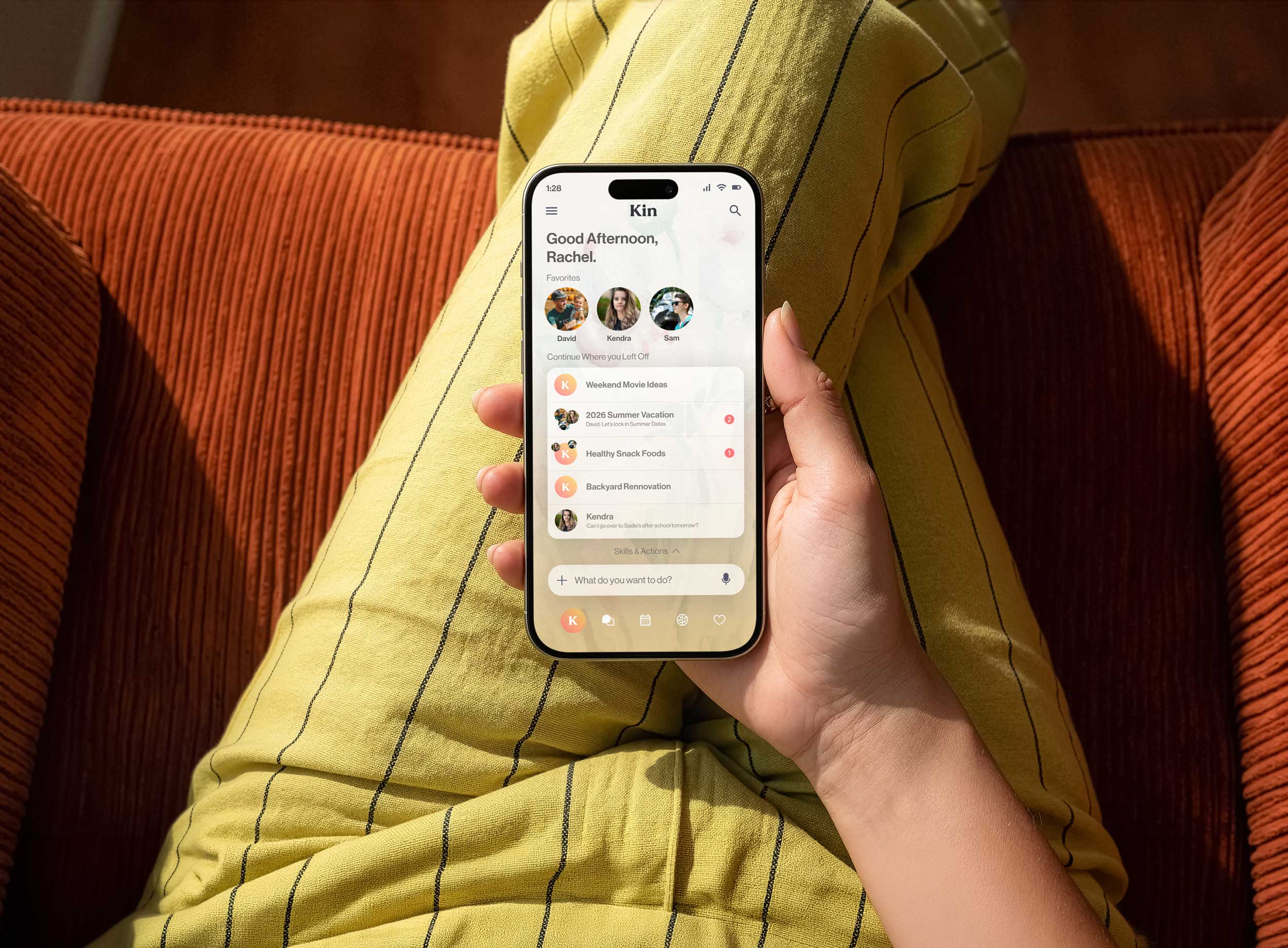 Part two
Add your family
Right after you sign in, Kin asks a few questions to get to know you. Early on it asks “Who’s in your family?” That’s where everyone comes in.
An adult
A partner, a grandparent, or another grown‑up. Kin creates a private invite link for them.
A child
Enter their name and age, and set a PIN. A parent always manages a child’s access. No phone yet? Add them as a profile so Kin knows about them.
No rush. Add people any time from Family → Members: tap Invite for an adult or Add child for a child.
Set up an adult’s phone
- Send them their invite link by text or email. It works from anywhere.
- They install Kin from the same TestFlight link, then tap your invite. Or they open Kin, tap Have an invite link? Join your family, and enter the code.
- They set their own password and save their own recovery key. Done.
Set up a child’s phone
- Install Kin on their phone from the same TestFlight link.
- On your Mac, open Kin Server and go to Devices → Connect a phone. It shows a QR code and a 6‑digit code.
- On the child’s phone, point the Camera at the QR code and tap the Kin link. Or open Kin on the same Wi‑Fi, tap Allow if asked, enter the code, and tap Connect.
- Your child taps their name and enters the PIN you set.
That’s it. Your family is on Kin.
Repeat the family steps for each person. A Mac that stays on and plugged in keeps Kin reachable and lets it think overnight. Kin is in public beta, so you may run into a few bugs. If something feels off, report it in the app at Family → Report a bug, visit our support page, or email us.
Your family’s data lives on your Mac.
It’s encrypted there with keys made from your family’s passwords. We don’t have them, and none of your family’s data comes to us. Kin only reaches us four ways: a one‑time license check, a relay for sealed traffic when you’re away, encrypted push notifications, and update checks. The relay counts households, never who, and you can turn that off. Read the full Privacy Policy.
We’re glad you’re here.The New Standard team
Use the buttons or your ← → arrow keys to move through the steps.